salesforce-integration
Overview
This feature provides an enhanced Salesforce integration which replaces the out-of-box Salesforce integration plugin. It can be used as a starting point for customizing Salesforce integration functionality, which is not possible when using the out-of-box integration.
Functionality included within this implementation:
- Activity logging
- Creates activity upon task completion or cancellation
- Includes agent copilot disposition and summary
- Relates the activity to the dialed or screen-popped record, or the agent-selected record
- Click-to-dial
- Screen pop
- UI enhancements
- Disables the pop-out and pop-in buttons while on a call, to prevent accidental call hangups
- Hides the CRM container when embedded
- Hides the Flex logo in the header to make room for additional buttons
- Opens the Flex panel automatically when click-to-dial is used or an inbound task is received
- Updates the utility bar item icon and label with the worker's current activity (if no tasks), incoming tasks, or the number of active tasks
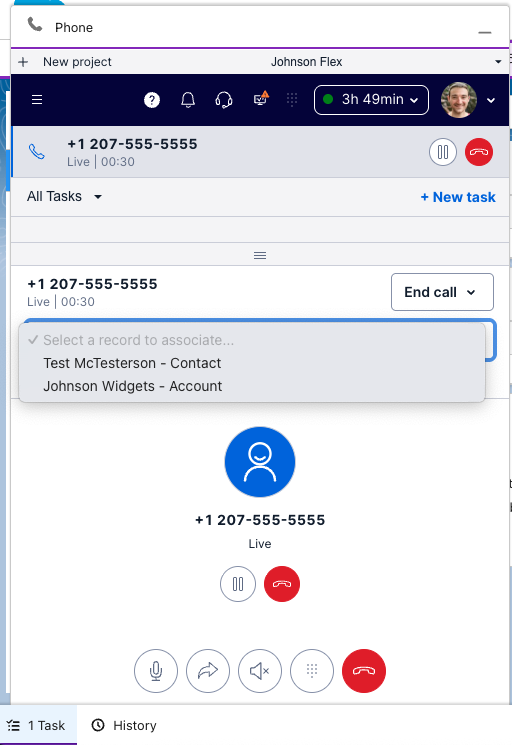
- When screen pop returns multiple records, a dropdown is added to the interface for the agent to select the appropriate record for activity logging
Example screenshot of handling an inbound call with UI enhancements and multiple screen pop results:
Business Details
Context
Flex includes a Salesforce integration out-of-the-box, however, it is not fully customizable. If the out-of-box integration does not fully meet your needs, you may end up needing to build your own enhanced integration, re-creating the functionality included in the out-of-box integration.
Objective
This salesforce-integration feature aims to be used as a starting point for your own customized Salesforce integration. The feature offers largely the same baseline functionality of the out-of-box integration, as well as some critical usability enhancements:
- Disables the pop-out and pop-in buttons while on a call, to prevent accidental call hangups
- Interface enhancements that streamline the agent workflow
- When screen pop returns multiple records, a dropdown is added to the interface for the agent to select the appropriate record for activity logging
Configuration options
The feature is functional only when Flex is embedded within Salesforce as described in the Flex documentation. If the out-of-box Salesforce integration has been enabled within the Twilio Console, it must first be disabled.
To enable the feature, under the flex-config attributes set the salesforce_integration enabled flag to true.
"salesforce_integration": {
  "enabled": true,
  "activity_logging": true, // Enables the automatic creation of activity records when a task is completed or canceled
  "click_to_dial": true, // Enables handling click-to-dial within Salesforce
  "copilot_notes": true, // Adds agent copilot disposition and summary to activity records created by the feature
  "hide_crm_container": true, // Hides the Flex CRM container when embedded within Salesforce
  "prevent_popout_during_call": true, // Disables the pop-out or pop-in button while on a call, to prevent accidental hangups
  "screen_pop": true, // Enables search and screen pop of Salesforce records based on the inbound task attributes
  "show_panel_automatically": true, // Pops open Flex when a task is received or click-to-dial is performed
  "utility_bar_status": true // Updates the utility bar item icon and label with the current activity (if no tasks), incoming task, or number of active tasks
}
Screen pop attributes
When an inbound task is accepted, and the screen_pop configuration option is set to true, the feature will use task attributes in conjunction with the configured Salesforce softphone layout to determine what record or page is displayed to the agent. Task attributes are used as follows:
- If the
sfdcObjectIdattribute is present, the Salesforce record ID contained within the attribute will be popped. No other attributes will be used for screen pop when this attribute is present.- This can be useful when you are performing a data dip to find a record as part of the IVR and want to pop the same record.
- Otherwise, a search within Salesforce will be performed, per the softphone layout, using the following task attributes in the following order:
namefromidentitycustomerAddress
Technical Details
The integration uses the Salesforce Open CTI APIs and the Lightning Console API to communicate with the Salesforce instance Flex is embedded within.
Initialization
File: utils/SfdcLoader.ts
Flex hook: pluginsInitialized event
Before any integration functionality can be realized, we must first load the appropriate JS libraries from Salesforce. To do so, we load the Open CTI and Console API JS libraries from the Salesforce domain we are embedded within by inserting them as <script> elements in the DOM, if they are not already.
Activity logging
File: utils/LogActivity.ts
Flex hooks: CompleteTask action, notesSubmitted and taskCanceled event
Activity logging is achieved by calling the OpenCTI saveLog() function to create a Task record in Salesforce after the agent has completed their handling of the task. This occurs when the agent presses the "Complete" button to complete the task, or when the task that they are handling is canceled (such as by a supervisor or by a failed outbound call).
If agent copilot functionality is enabled, this feature will collect the notes submitted using the notesSubmitted event, and will include them in the payload to saveLog(). As Salesforce does not include Activity fields out-of-the-box for all copilot data points, such as topics and sentiment, these are not submitted by the feature as-is. However, you may update the payload as desired to pass these into custom fields.
In order to correctly relate the activity log to another record, the WhatId or WhoId will be passed to saveLog based on the value of the task attribute sfdcObjectId. This attribute is set automatically by the click-to-dial functionality for outbound tasks, and is also set automatically by the screen pop functionality for inbound tasks when there is a single record match returned by Salesforce. If screen pop returned multiple matches, the user is presented with a dropdown menu in their task canvas, which sets the attribute when a record is selected. The sfdcObjectType attribute is used to store the type of object referenced by sfdcObjectId, which is then used to determine if the record ID should be passed as the WhoId (Contact or Lead) or the WhatId (everything else).
As described above, in order to determine the record to relate the activity log to, the user is presented with a dropdown list of records returned from the search results. However, it may be more desirable to instead integrate the selection within the Salesforce interface itself. One approach for achieving this is to use a Lightning Message Service (LMS) channel to publish a message that the Flex plugin can subscribe to and receive. Documentation for subscribing to an LMS channel via the Open CTI library is available here.
Click-to-dial
File: utils/ClickToDial.ts
Flex hooks: StartOutboundCall action, pluginsInitialized event
Click-to-dial is enabled by calling the OpenCTI enableClickToDial() function when the feature initializes, and if successful, passing a callback function to the OpenCTI onClickToDial() function for Salesforce to execute when the user clicks on a number to dial.
When performing a click-to-dial, the callback function passed to onClickToDial() invokes the StartOutboundCall Flex Action to initiate the outbound call. In addition, the OpenCTI setSoftphonePanelVisibility() function is called to pop open the Flex utility bar item.
Screen pop
File: utils/ScreenPop.ts
Flex hook: AcceptTask action
Screen pop is performed whenever the AcceptTask action is successfully invoked for inbound tasks. If there is already an sfdcObjectId attribute stored on the task, the feature will call the OpenCTI screenPop() function to open the record ID specified in this attribute.
If there is no sfdcObjectId attribute stored on the task, the feature will call the OpenCTI searchAndScreenPop() function, passing to it one of the following task attributes in the following order of precedence:
namefromidentitycustomerAddress
Salesforce will then perform a search and screen pop based on the configured softphone layout settings. If a single match result is returned, that record will be saved to task attributes. If multiple match results are found, and activity logging is also enabled, a dropdown will be added to the task canvas for the agent to select the appropriate record from the search results. When selected, the record will be saved to task attributes. The task attributes will then be used for saving associations as part of activity logging.